
When to Use Batch Unix Timestamp Conversion Instead of One Timestamp at a Time
For developers and analysts who need to convert many timestamps, this guide explains when to use batch unix timestamp conversion and how to pick the right metho
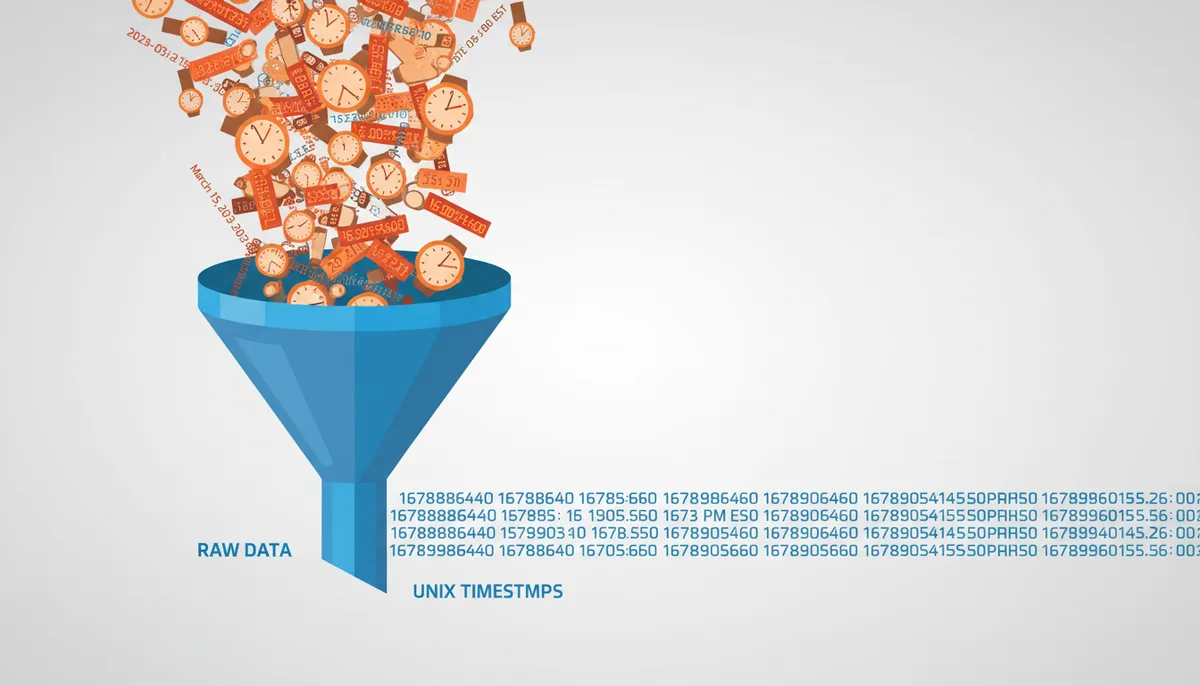
You're working on a project where you need to convert timestamps from your log files. You've been manually converting them one by one, but it's starting to feel like a never-ending task. You know there has to be a better way, especially when you have thousands of timestamps to process. This guide will help you identify when your current method is no longer efficient and how to choose the right batch conversion method for your specific task.
What are the signs you've outgrown single timestamp conversion?
Manual conversion can quickly become a bottleneck in your workflow. When you find yourself spending more time than necessary on a simple task, it's time to consider batch conversion. Here are some clear signs that you've outgrown single timestamp conversion:
- Time-consuming for more than a handful of values: If you're dealing with more than 100 timestamps, manual conversion becomes a tedious and time-consuming process. For example, if you have 500 timestamps to convert, doing it one by one would take several hours.
- Mentally draining: Manual conversion requires constant attention and can lead to mental fatigue. The risk of making mistakes increases as you work through a long list of timestamps.
- High risk of human error: Copy-paste mistakes, typos, or skipping a value in a long list can compromise data integrity. Imagine missing just one timestamp in a list of 1,000; that single mistake could invalidate all your work.
- Dealing with mixed precision: Handling timestamps in seconds, milliseconds, and nanoseconds becomes unmanageable one-by-one. Converting each type separately is not only time-consuming but also prone to errors. For instance, converting 1,000 nanosecond timestamps manually can take over an hour.
- Different formats: Mixing different formats (e.g., ISO 8601, RFC 3339) makes manual conversion even more challenging. Ensuring consistency across different formats is crucial for accurate results. For example, converting timestamps from ISO 8601 to Unix timestamps manually can be time-consuming and error-prone.
How do different batch conversion methods compare?
There are several methods available for batch timestamp conversion, including using spreadsheet formulas, online tools, writing custom scripts, and database functions. Each method has its strengths and weaknesses. Let's explore how they compare:
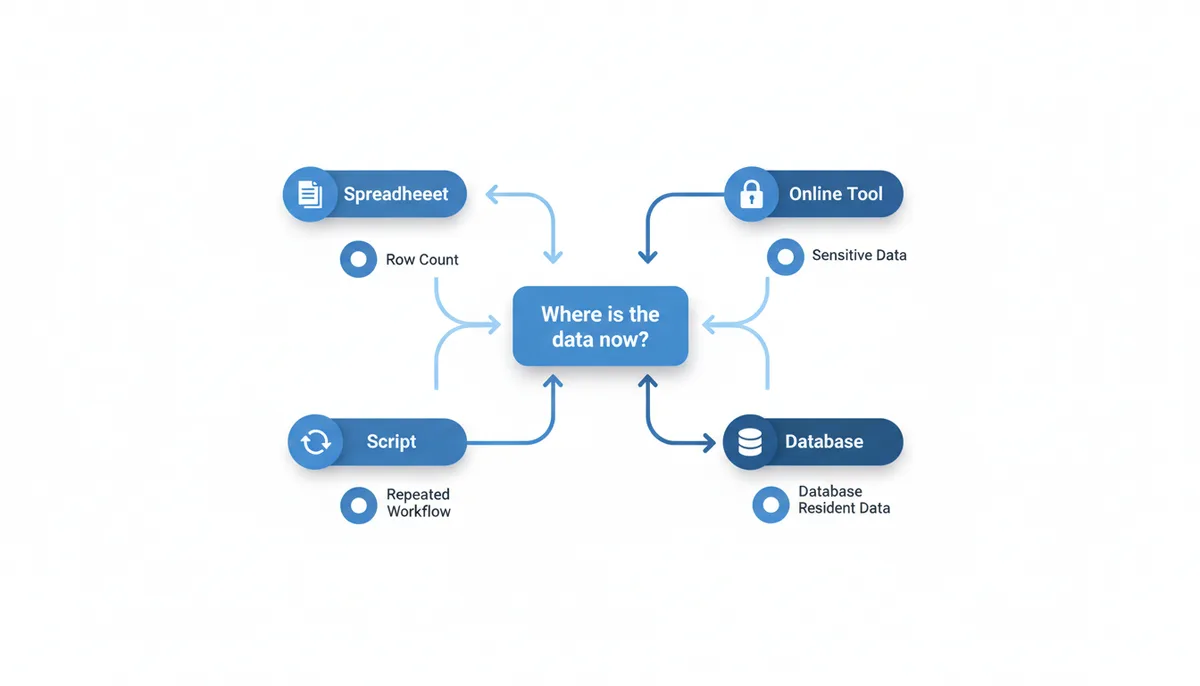
| Method | Best For | Scalability | Speed | Required Skills | Privacy/Sensitivity | Repeatability | Setup Time | Failure Modes | When Not to Use |
|---|---|---|---|---|---|---|---|---|---|
| Spreadsheet (Excel, Google Sheets) | Quick, one-off tasks | Up to a few thousand rows | Slow for large datasets | Basic Excel/Google Sheets knowledge | Low | High | Minimal | Data corruption due to manual errors | Large datasets |
| Online Tool | User-friendly with medium datasets | Up to millions of rows | Varies, generally fast | No technical skills required | Varies | High | Minimal | Internet connectivity issues, tool downtime | Sensitive data, complex logic |
| Script (Python, JavaScript) | Automation and integration | Limited only by system resources | Fast, can handle millions of rows | Familiarity with programming languages | Varies | High | Significant | Programming errors, dependency issues | Simple one-off tasks |
| Database Function (SQL) | Handling large datasets in databases | Limited only by database capacity | Fast, optimized for database queries | Familiarity with SQL | High | High | Minimal | Database performance issues, query errors | External data sources, complex workflows |
Each method has its use case:
- Spreadsheets: Best for quick, one-off tasks. They are user-friendly and require minimal setup. However, they may slow down significantly with large datasets.
- Online Tools: Ideal for user-friendly solutions with medium-sized datasets. They are easy to use and don't require any technical skills. However, their scalability is limited compared to scripts or database functions.
- Scripts: Perfect for automation and integration into larger workflows. They can handle massive datasets efficiently and provide flexibility. However, they require programming knowledge and initial setup.
- Database Functions: Suitable for handling large datasets within a database. They are optimized for performance and can handle millions of rows. However, they require familiarity with SQL and database management.
How do you prepare your data for batch conversion?
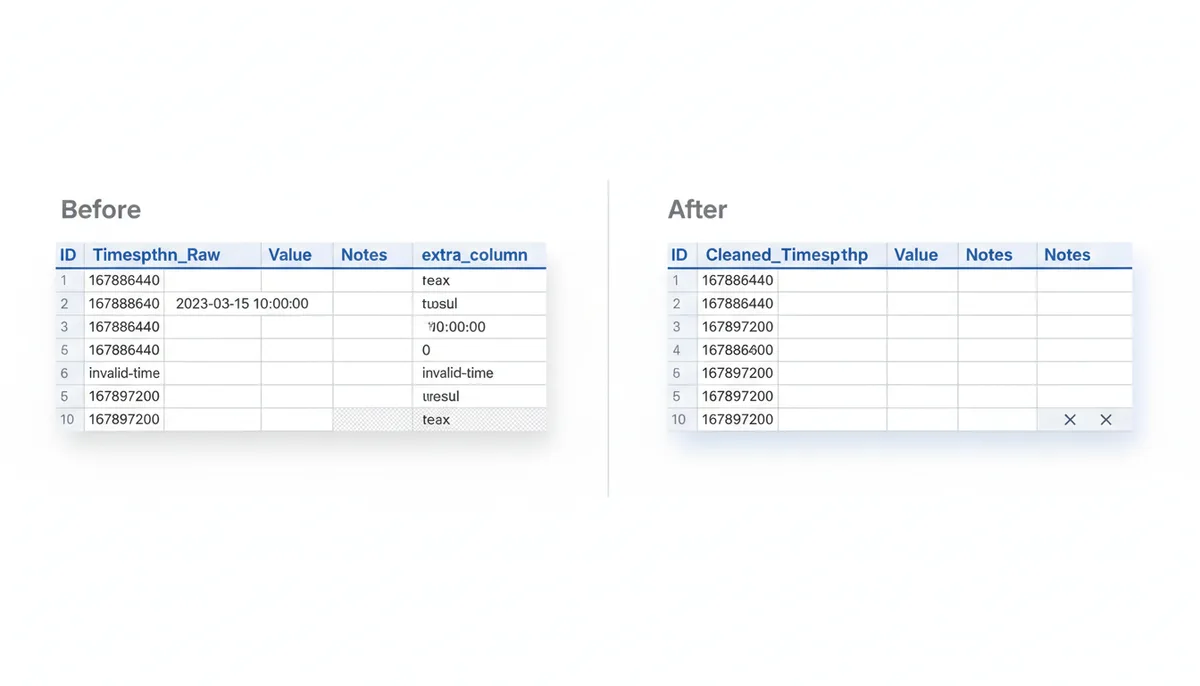
Data preparation is crucial for successful batch conversion. Here are the steps to ensure your data is ready:
- Data Cleaning: Remove headers, footers, and non-numeric text from the list of timestamps. This ensures that only valid timestamps are processed.
- Standardization: Ensure all timestamps are in the same unit (e.g., seconds or milliseconds). Mixing units can lead to incorrect conversions. For example, treating milliseconds as seconds can result in a date far in the future.
- Isolating the Timestamp Column: In multi-column files (like CSVs from log exports), isolate the timestamp column. Handle empty or malformed rows to avoid errors during processing.
Walkthrough: Using an online tool for instant batch conversion
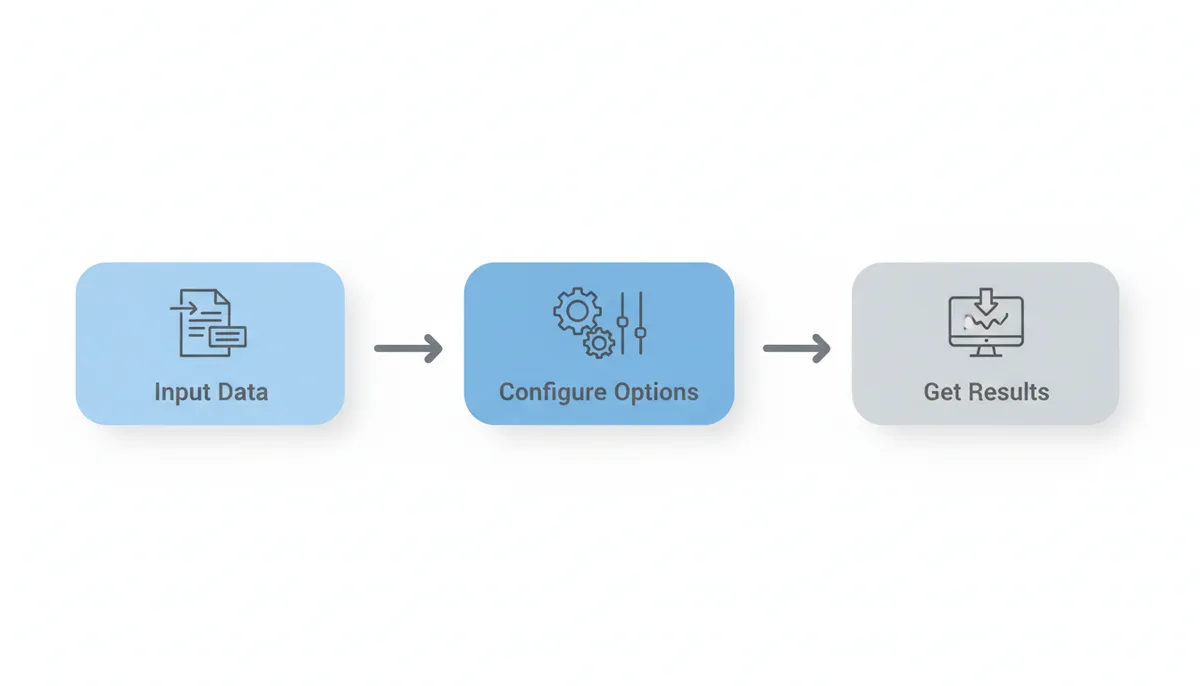
Let's walk through the process of using an online tool for batch conversion. We'll use UnixConverter.com's online tool as an example:
- Input Data: Paste a list of timestamps directly into the text area or upload a file (CSV, TXT).
- Configure Options: Specify the input unit (seconds, milliseconds, nanoseconds), desired output format (e.g., ISO 8601), and correct timezone.
- Get Results: View or download the converted timestamps.
When should you write a script instead of using a tool?
Custom scripts are necessary in scenarios where conversion is part of a larger automated data pipeline (ETL). Here are the reasons why you might prefer a script:
- Handling Truly Massive Datasets: Scripts are more efficient for processing files containing many gigabytes of data, which are impractical to upload to a web tool.
- Custom Logic: Scripts allow for complex logic, such as conditional formatting, timezone adjustments based on another data column, or integrating with other APIs.
- Automation and Integration: Scripts can be integrated into existing workflows, making the entire process seamless and efficient.
What are the most common errors in batch conversion?
Here are some common errors and how to fix them:
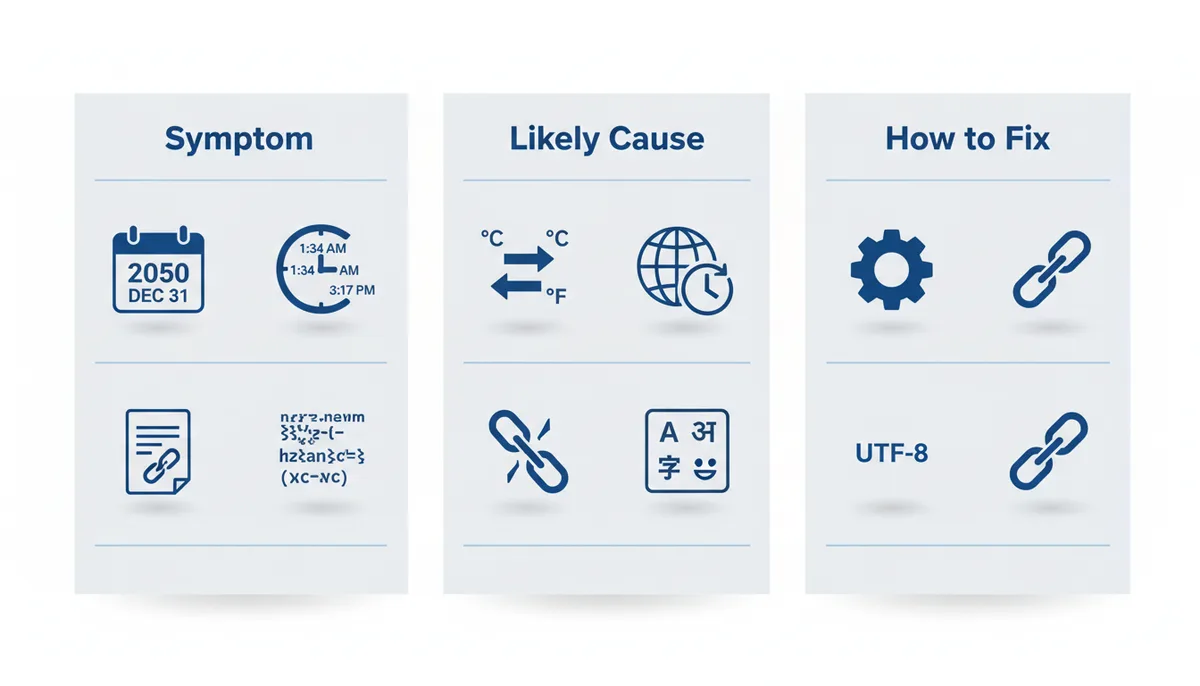
| Symptom / Error Message | Likely Cause | How to Fix |
|---|---|---|
| Date is in the year 50,000+ | Millisecond timestamp interpreted as seconds | Specify 'milliseconds' as the input unit |
| Date is off by several hours | Failing to specify a timezone | Ensure the correct timezone is specified. Use an IANA time zone identifier, for example America/New_York, and verify whether the source data is UTC or local time. |
| Date is incorrect | Character encoding issues | Use UTF-8 encoding for input files |
| Date is incorrect | Delimiter issues in CSV files | Correct delimiters and ensure consistent formatting |
How do you handle non-standard epochs and formats?
Timestamps that don't use the standard Unix epoch (1970-01-01) can pose challenges. Here’s how to handle them:
- WebKit Timestamps: WebKit timestamps start from 1601-01-01. To convert them, calculate the offset in seconds between the WebKit epoch (1601-01-01) and the Unix epoch (1970-01-01). Subtract this offset from each WebKit timestamp before conversion. For example, to convert a WebKit timestamp of 1234567890, subtract 11644473600 seconds (the number of seconds between the two epochs):
1234567890 - 11644473600 = -11644473610. - LDAP/NTFS Timestamps: LDAP and NTFS timestamps also start from 1601-01-01. Similar to WebKit timestamps, calculate the offset and add it to the timestamps. LDAP timestamps are stored in 100-nanosecond intervals since 1601-01-01, so divide the hexadecimal value by 100 to get the number of seconds:
(0x123456789ABCDEF0 / 100) * 10000000. Then add this value to the Unix epoch. - Hexadecimal Timestamps: Hexadecimal timestamps need to be converted to base-10 integers before processing. Use a script or spreadsheet function to perform this conversion. For example, to convert the hexadecimal timestamp
0x123456789ABCDEF0, first convert it to a decimal integer:324798508860800. Then divide by 100 to get the number of seconds:324798508860800 / 100 = 3247985088608. Finally, add this value to the Unix epoch.
Note: The standard definition of the Unix epoch (00:00:00 UTC, January 1, 1970) is the basis for Unix timestamps as defined by standards bodies: The Open Group.
Understanding the Mechanism of Batch Conversion
The mechanism behind batch conversion involves several steps that ensure accuracy and efficiency. Understanding these steps can help you choose the right tool or method and avoid common pitfalls. Here’s a deeper look into how batch conversion works:
Step 1: Data Parsing
The first step in batch conversion is data parsing. The tool or script reads through your input file or list of timestamps, extracting the relevant information. This process must handle various formats and edge cases to ensure all timestamps are correctly identified and processed.
Step 2: Unit Conversion
Once the timestamps are parsed, the tool or script converts them to a consistent unit (usually seconds). This step is crucial because different systems use different units. For example, WebKit timestamps use a different epoch than Unix timestamps, requiring an offset calculation.
Step 3: Timezone Adjustment
Handling timezones correctly is another critical aspect. Most tools allow you to specify the timezone for each timestamp. However, if the timezone is not specified, the tool commonly defaults to UTC. Ensuring correct timezone handling prevents off-by-hour errors; refer to authoritative timezone sources when in doubt: IANA Time Zone Database.
Step 4: Output Formatting
The final step is formatting the converted timestamps. This involves converting them into a human-readable format or the desired output format. Common formats include ISO 8601, RFC 3339, and custom date-time strings.
Real Worked Example
Consider a scenario where you have a CSV file containing timestamps in milliseconds. You want to convert them to ISO 8601 format using a Python script. Using the pandas library is a common approach for this kind of task: pandas documentation.
import pandas as pd

# Load the CSV file
df = pd.read_csv('timestamps.csv')

# Convert milliseconds to seconds
df['timestamp'] = df['timestamp'].apply(lambda x: x / 1000)

# Convert to datetime
df['datetime'] = pd.to_datetime(df['timestamp'], unit='s')

# Format to ISO 8601
df['iso_8601'] = df['datetime'].dt.strftime('%Y-%m-%dT%H:%M:%S.%fZ')

# Save the results
df.to_csv('converted_timestamps.csv', index=False)
This script demonstrates the key steps: reading the CSV, converting units, formatting, and saving the results. Understanding this mechanism helps you choose the right tool or write an efficient script.
Common Pitfalls and How to Avoid Them
Batch conversion can go wrong in many ways, leading to incorrect or inconsistent data. Here are some common issues and how to avoid them:
Pitfall 1: Precision Errors
Precision errors occur when you mix up the precision of timestamps. For example, treating a millisecond timestamp as a second can result in a date far in the future. Always ensure that the precision of the input matches the expected output.
Pitfall 2: Timezone Mismatch
Failing to specify the correct timezone can lead to significant errors. For instance, treating a timestamp as UTC when it should be in a different timezone can result in dates that are off by several hours. Always specify the correct timezone or use UTC as a fallback.
Pitfall 3: Character Encoding Issues
Character encoding problems can corrupt input data, especially when dealing with non-ASCII characters. Ensure that your input files are encoded in UTF-8. Tools like UnixConverter.com handle this automatically, but it's essential to check for such issues when using custom scripts.
Pitfall 4: Delimiter Issues
In CSV files, delimiter issues can cause rows to be incorrectly split or merged. Ensure that your CSV files use consistent delimiters (e.g., commas) and handle special characters properly.
Comparing Alternatives
Compared to manual conversion, batch conversion tools offer several advantages:
- Speed: Tools like UnixConverter.com can process thousands of timestamps in seconds, whereas manual conversion would take hours.
- Accuracy: Automated tools reduce the risk of human error, ensuring consistent and accurate results.
- Scalability: Tools can handle large datasets efficiently, whereas manual methods quickly become impractical.
However, custom scripts offer more flexibility and control. They allow you to handle complex logic and integrate with other systems. Scripts also provide better performance for extremely large datasets.
Cost and Effort Considerations
When deciding between batch conversion tools and custom scripts, consider the cost and effort involved:
Batch Conversion Tools
- No Setup Cost: Most online tools are free to use, requiring no initial setup or installation.
- Maintenance Cost: Over time, maintaining a custom script can require updates and bug fixes, which may incur additional costs.
- User-Friendliness: Online tools are generally easy to use, requiring minimal technical expertise.
Custom Scripts
- Initial Setup Cost: Writing and testing a script requires time and resources, which can be a significant upfront investment.
- Maintenance Cost: Custom scripts require ongoing maintenance, including updates and troubleshooting.
- Flexibility: Custom scripts offer more flexibility and control, allowing you to handle complex logic and integrate with other systems.
Edge Cases
Edge cases can often break batch conversion tools or scripts. Here are a few examples:
- Leap Seconds: Most tools ignore leap seconds, which can cause discrepancies in time calculations. For applications requiring high precision, this can be a significant issue.
- Non-Standard Epochs: Handling non-standard epochs (like WebKit or LDAP) requires additional logic to calculate offsets. Tools like UnixConverter.com handle these cases, but custom scripts need specific handling.
- Very Large Timestamps: Some tools may struggle with very large timestamps (e.g., timestamps from the year 2038). Custom scripts can handle these cases more gracefully.
Understanding these edge cases can help you choose the right tool or write a robust script that handles all scenarios effectively.
Frequently Asked Questions
Can I use batch conversion to convert human-readable dates back to Unix timestamps?
Yes, most batch conversion tools and scripts can perform the reverse operation. You typically need to specify the exact format of the input dates (e.g., 'YYYY-MM-DD HH:mm:ss') for the tool to parse them correctly.
What's the largest file size I can process with an online tool?
This depends on the specific tool. Most free online converters are suitable for files up to a few megabytes, containing tens of thousands or hundreds of thousands of rows. For larger files, a local script is more efficient.
Is it safe to upload files with sensitive data to an online converter?
For sensitive data, you should always prefer a tool that processes files locally in your browser (client-side) or use an offline script you control. Check the tool's privacy policy to see how it handles your data.
How does batch conversion handle leap seconds?
It doesn't. Unix time is a linear count of seconds that ignores leap seconds. Therefore, batch conversion tools will also ignore them, which is the standard and expected behavior for most applications.
Can I do batch conversion directly in Excel or Google Sheets?
Yes, you can use a formula. For a Unix timestamp in cell A1, the Excel formula is `=(A1 / 86400) + 25569` (adjust for timezone). However, this can be slow with large datasets and less flexible than dedicated tools.
What happens if my file contains mixed seconds and milliseconds?
You must standardize them before conversion. A common method is to identify the number of digits; 10-digit numbers are typically seconds, and 13-digit numbers are milliseconds. You can use a script or spreadsheet functions to normalize all values to one unit.
By understanding these concepts and choosing the right batch conversion method, you can streamline your workflow and save valuable time and effort. Whether you're using a spreadsheet, an online tool, or a custom script, the key is to prepare your data properly and leverage the strengths of each method.
Sources
- The Open Group (IEEE Std 1003.1) — The official definition of 'Epoch' as 00:00:00 UTC, January 1, 1970, and 'Seconds Since the Epoch', which is the basis for all Unix timestamps.
- IANA Time Zone Database — The authoritative source for time zone information, backing the claims about the importance of correctly specifying timezones (UTC, local) during conversion to avoid off-by-hour errors.
- pandas Documentation — Claims about using Python for programmatic batch conversion, specifically how the pandas library can efficiently handle large datasets, convert numeric timestamps, and manage timezones.
- PostgreSQL Documentation — Examples and capabilities of using SQL functions like `to_timestamp()` for converting epoch values stored in a database, supporting the 'database method' of batch conversion.
- Mozilla Developer Network (MDN) — Information on how JavaScript handles dates, including its use of millisecond-precision epoch time, which is relevant for scripting and for understanding how browser-based tools work.
- IETF RFC 3339 — The standard for the ISO 8601 date format profile, which is a common, unambiguous text format for outputting converted timestamps.