
How to Prepare a CSV Column for Batch Unix Timestamp Conversion
For developers and analysts: step-by-step checklist to diagnose, clean, and standardize CSV timestamp columns for reliable batch Unix conversions.
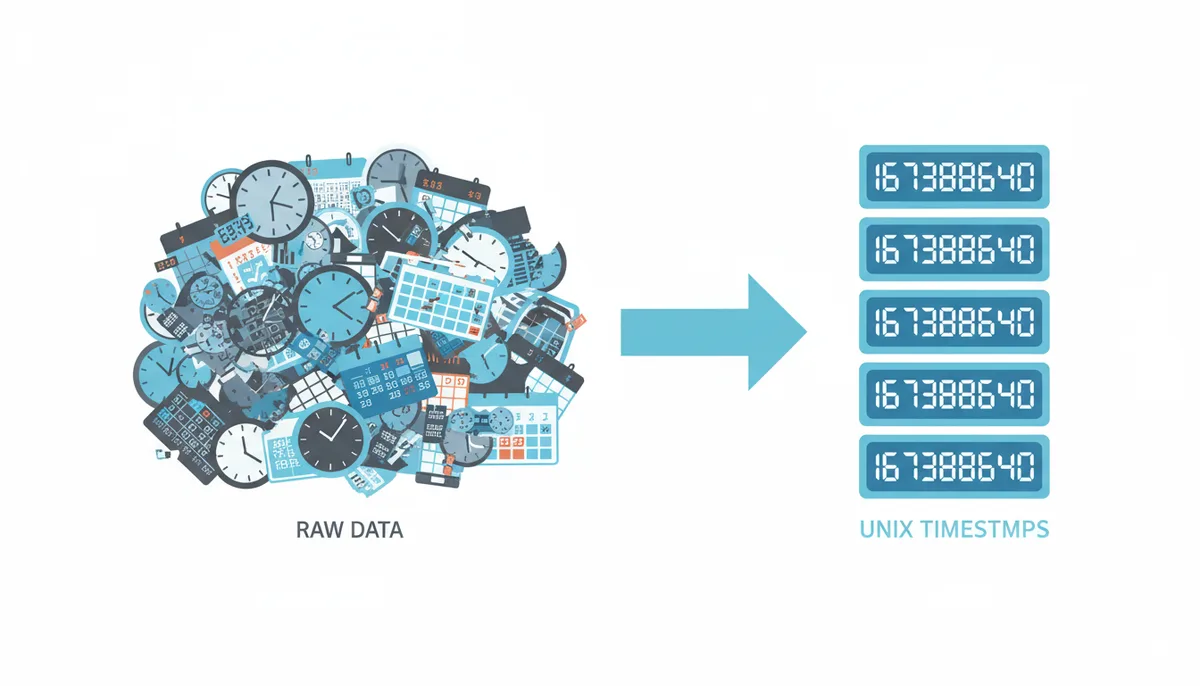
Your batch conversion failed. The tool spat out a column of errors, or maybe a few dates were off by 100 years. You’ve got a CSV file with 50,000 rows of timestamps, and you need them all in human-readable dates, but the process is broken before it even starts.
The problem is almost never the converter itself. It’s the data. Batch tools are brutally literal; they expect a single, uniform format. Your CSV column, pulled from logs, databases, or a dozen different APIs, is a mess of formats, units, and hidden assumptions. This guide is about fixing that mess. We’ll walk through the exact steps to diagnose, clean, and standardize your timestamp column so that when you finally hit “convert,” it just works.
Why Batch Timestamp Conversions Fail: Common CSV Pitfalls
Think of a batch converter as a factory line. It’s designed to stamp one shape of metal, over and over. If you feed it a box of screws, bolts, and random bits of plastic, the line jams. Your CSV column is that box. The three most common jams are mixed formats, inconsistent units, and timezone ambiguity.
Mixed formats happen when your column contains both numeric Unix timestamps and human-readable date strings. A tool expecting `1672531200` will choke on `'2023-01-01'`. Inconsistent units are subtler: one row might be in seconds (10 digits), the next in milliseconds (13 digits), and another in microseconds (16 digits). The converter will treat them all as seconds, making your dates wildly inaccurate.
But the most insidious pitfall is timezone ambiguity. The Unix epoch is defined as seconds since January 1, 1970, 00:00:00 Coordinated Universal Time (UTC). Full stop. If your source data says “2023-11-05 14:30” without specifying a timezone, it’s a “naive” datetime. Your spreadsheet, programming language, or conversion tool will interpret that naive datetime according to its own default—often your local system time. A date created in New York (UTC-5) and a date created in London (UTC+0) that look identical in the CSV will produce different Unix timestamps, skewing your entire analysis.
The batch converter isn’t broken. Your data is unprepared. The rest of this guide is the preparation manual.
The Golden Standard: What a Perfect Timestamp Column Looks Like
Before you clean, you need to know the target. The ideal input for a batch Unix timestamp converter is a single column in a CSV file that meets these criteria:
- Purely Numeric: Every cell contains only digits, optionally with a leading minus sign for pre-1970 dates. No commas, letters, slashes, or spaces.
- Consistent Unit: Every value is in the same unit of measurement. For 99% of use cases, this is seconds. The entire column should be either 10-digit (seconds) or 13-digit (milliseconds) numbers, but not both.
- UTC-Based: Any timezone conversion has already been applied. The numeric value represents the exact moment in UTC.
- Clean Structure: No header in the middle of the data, no empty rows within the data range, and the file is saved in a standard encoding like UTF-8.
Your goal is to transform your messy column into this pristine state. The converter will then handle the rest flawlessly.
First-Pass Diagnosis: How to Quickly Inspect Your CSV for Problems
Don’t open the file in a spreadsheet first. That’s like looking at a translated summary. Open it in a plain text editor like VS Code, Notepad++, or Sublime Text. You need to see the raw data: the commas (or tabs) that separate columns, any hidden quotation marks, and strange characters. Look at the first 20 lines and the last 20 lines. Is the timestamp column always in the same position? Are there missing values shown as empty strings or “NULL”?
Now, for a visual sweep, open the file in Excel or Google Sheets. Select your timestamp column and sort it A to Z. This simple action is incredibly powerful. It will group all the non-numeric entries—your date strings—at the top. It will also cluster numeric entries by their first digit, making it easy to spot outliers. Scroll through. Do you see numbers that are clearly too short (like 5 digits) or too long (like 16 digits)? Those are red flags.
For very large files, or if you’re comfortable in a terminal, command-line tools are your fastest scanner. Open your shell, navigate to the file’s directory, and use a few commands:
head -n 50 yourfile.csv: Shows the first 50 rows.tail -n 50 yourfile.csv: Shows the last 50 rows.grep -vE '^[0-9]+$' yourfile.csv | head -20: This finds and shows rows that contain anything other than just digits in the first column. It’s a direct way to find your problematic mixed-format rows.
This first diagnosis tells you what you’re up against. Now you pick your tools.
Choosing Your Toolkit for CSV Cleaning
You have three main paths to clean your data, each with its own trade-off between control, speed, and scalability.
Spreadsheet Software (Excel, Google Sheets): Use this for files under 1 million rows when you need to see the data and fix problems interactively. It’s perfect for visual inspection, applying formulas column-by-column, and one-off fixes. It falls apart with huge files, complex logic, or when you need to document and repeat the exact same cleaning steps next week.
Python with Pandas: This is the industry standard for a reason. It handles files of almost any size, can encapsulate complex cleaning logic in a repeatable script, and has unparalleled power for parsing dates and handling timezones. The learning curve is steeper, but the investment pays off if you do this more than once.
Command-Line Tools (awk, sed): These are the scalpel for text files. They’re blazingly fast and perfect for simple, uniform transformations on massive files—like stripping out a character or extracting a column. They are not ideal for the nuanced logic of date parsing or timezone conversion.
Choose based on your file size and your need for reproducibility.
| Toolkit | Best For | Scalability | Ease of Use | Reproducibility | Handling Complex Logic |
|---|---|---|---|---|---|
| Spreadsheet Software | Visual inspection, small files (<1M rows), one-off tasks | Poor (hits row limits) | High (familiar GUI) | Low (manual steps) | Moderate (formulas can get complex) |
| Python with Pandas | Large files, complex transformations, automated workflows | Excellent (handles gigabytes) | Medium (requires coding) | High (saved script) | Excellent (full programming language) |
| Command-Line Tools | Very large files, simple text substitutions, fast filtering | Excellent | Low (syntax-heavy) | Medium (saved command) | Poor (limited to text patterns) |
Step 1: Unifying Mixed Date and Time Formats
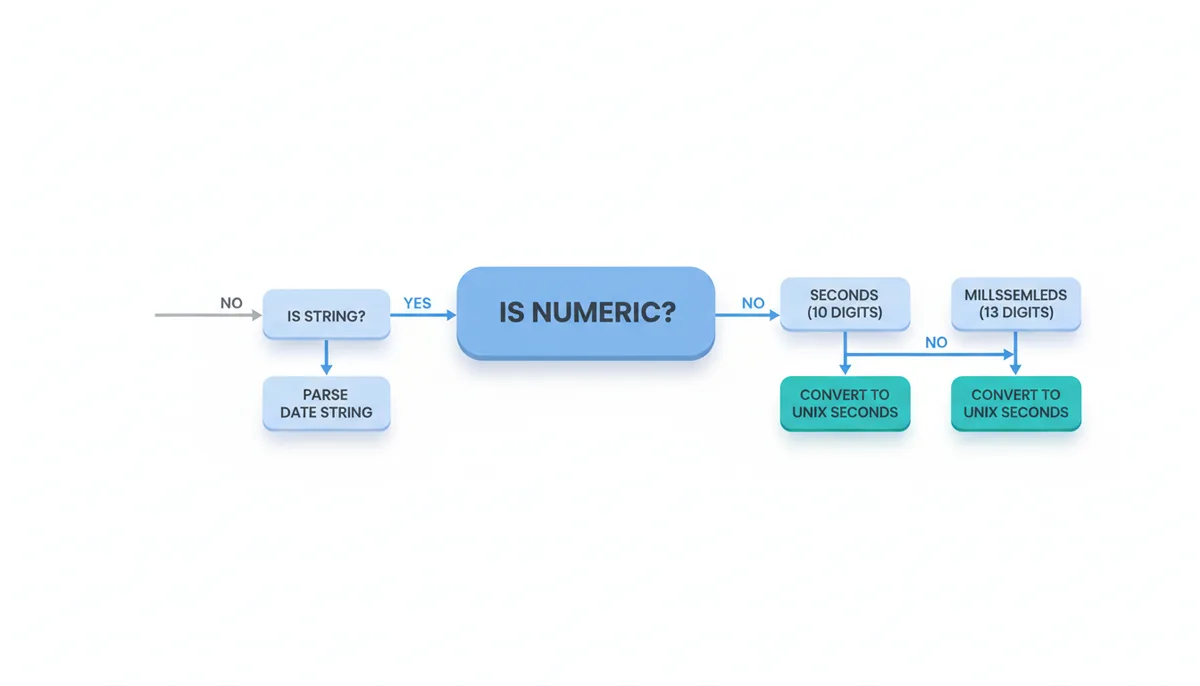
This is where most people get stuck. You have a column with values like `1686355200`, `'2023-06-10'`, and `'06/10/23 3:45 PM'`. You need to get them all into numeric Unix seconds. The first step is to separate the numeric from the strings.
In a spreadsheet, add a new helper column. Use a formula to check if the cell is numeric. In Excel or Google Sheets, something like `=ISNUMBER(A2)`. Filter for `FALSE` to see all your string dates. Now, you need to parse these strings. Spreadsheet functions like `DATEVALUE` and `TIMEVALUE` can help, but you must know the spreadsheet’s epoch. Excel’s base date is January 0, 1900. To convert an Excel date to Unix seconds, you use: `=(A2 - DATE(1970,1,1)) * 86400`. Google Sheets’ base is December 30, 1899. Its formula is similar but adjusts for the different epoch: `=(A2 - DATE(1970,1,1)) * 86400` (the date system handles the internal shift). This gets messy quickly with varied formats.
In Python with Pandas, this is a single, robust line. The `pd.to_datetime` function is a powerhouse that can infer dozens of common date string formats automatically.
import pandas as pd
df = pd.read_csv('your_file.csv')
# Attempt to parse everything in the 'timestamp' column as a datetime.
# 'coerce' turns failures into NaT (Not a Time), so the process continues.
df['parsed_date'] = pd.to_datetime(df['timestamp'], errors='coerce', utc=True)
This one command will successfully parse ISO 8601 strings (`'2023-06-10T15:45:00Z'`), common slash formats (`'06/10/2023'`), and many others. For the numeric Unix timestamps that were mis-parsed, we handle them in the next step. The key is that `errors='coerce'` prevents the whole operation from crashing on a single bad row.
Step 2: Normalizing All Timestamps to UTC
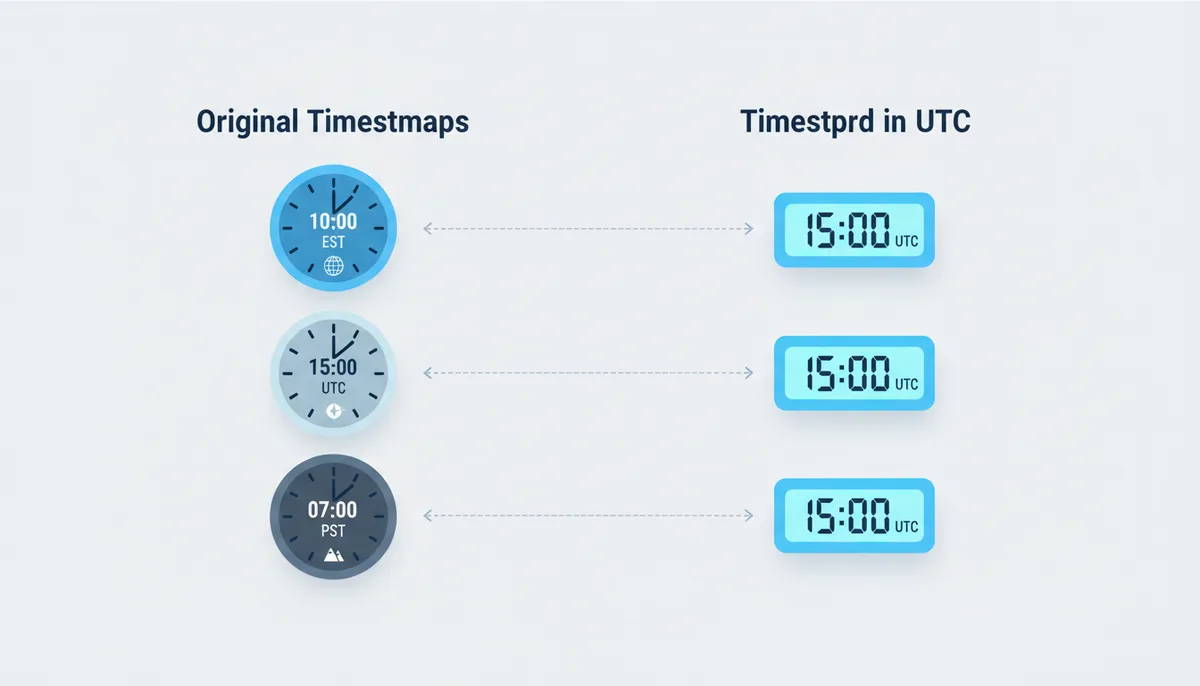
Unix time is UTC time. If your data isn’t in UTC, your results will be wrong by the exact offset of your local timezone. You must explicitly handle this.
First, detect if you have timezone information. Look for strings ending in `Z` (for UTC), or with offsets like `+05:30` or `-08:00`. Abbreviations like `EST` or `PST` are unreliable and should be treated with caution—they can be ambiguous (does EST mean US Eastern or Australian Eastern?).
If your data has explicit offsets, `pd.to_datetime` will usually handle them correctly if you pass `utc=True`. The harder case is “naive” datetimes that you know are in a specific timezone (e.g., “all these server logs are in US/Pacific”). You must first localize them to that timezone, then convert them to UTC.
# Assume df['parsed_date'] contains some naive datetimes (no timezone).
# We know they are in US/Eastern time.
eastern_tz = 'America/New_York'
# Localize the naive datetimes to Eastern Time
df['date_eastern'] = df['parsed_date'].dt.tz_localize(eastern_tz, ambiguous='NaT', nonexistent='NaT')
# Now convert to UTC
df['date_utc'] = df['date_eastern'].dt.tz_convert('UTC')
The `ambiguous` and `nonexistent` parameters handle edge cases like daylight saving time transitions. For spreadsheets, you’re often forced to do manual offset arithmetic. If you know a column is in EST (UTC-5), you’d create a new column with a formula that adds `5/24` (5 hours) to the date/time cell before converting it to a Unix timestamp. This is brittle and error-prone, which is why a script is better for anything serious.
Step 3: Validating and Standardizing Numeric Timestamp Units
You’ve parsed the strings. Now you need to unify the numeric values. A column with `1672531200` (seconds) and `1672531200000` (milliseconds) is a recipe for disaster. The rule of thumb: a 10-digit number around 1.6 billion is seconds (it represents a date around 2023). A 13-digit number around 1.6 trillion is milliseconds.
In a spreadsheet, use the `LEN` function to check the number of digits. In a new column, use a formula like: `=IF(LEN(A2)=13, A2/1000, A2)`. This says: if it’s 13 digits, divide by 1000 to get seconds; otherwise, assume it’s already seconds. Copy this formula down the entire column. The result is your new, unified seconds column.
In your Python script, you can apply similar logic. First, ensure all your parsed UTC datetimes are converted to Unix seconds (with millisecond precision). Then, handle the originally numeric rows that `pd.to_datetime` ignored.
# Convert the UTC datetime column to Unix seconds (float, includes milliseconds)
df['unix_seconds'] = df['date_utc'].view('int64') // 10**9  # Nanoseconds to seconds

# Now, handle rows where 'parsed_date' is NaT (the original numeric timestamps).
mask_numeric = df['parsed_date'].isna() & df['timestamp'].apply(lambda x: str(x).isdigit())
# Convert the raw string/number to integer
df.loc[mask_numeric, 'raw_number'] = pd.to_numeric(df.loc[mask_numeric, 'timestamp'])
# Normalize: if it's > 1e12, assume milliseconds.
df.loc[mask_numeric, 'unix_seconds'] = df.loc[mask_numeric, 'raw_number']
df.loc[mask_numeric & (df['raw_number'] > 1e12), 'unix_seconds'] /= 1000
This gives you a single `unix_seconds` column where every value is a floating-point number representing seconds since the Unix epoch in UTC.
Automating the Cleanup: A Complete Python Script for Large Files
Here is a consolidated Python script that brings the previous steps together. It’s designed to be robust, log its actions, and save a clean CSV ready for batch conversion. The key strategy is to separate numeric Unix timestamps from date strings first, as they require fundamentally different parsing logic.
import pandas as pd
import numpy as np
from zoneinfo import ZoneInfo

def clean_timestamp_csv(input_file, output_file, timestamp_column='timestamp', source_tz=None):
    """
    Cleans a CSV column containing mixed timestamp formats.
    Args:
        input_file: Path to input CSV.
        output_file: Path for output CSV.
        timestamp_column: Name of the column with timestamps.
        source_tz: IANA timezone name (e.g., 'America/New_York') if naive date strings have a known source.
    """
    df = pd.read_csv(input_file, dtype={timestamp_column: 'object'})  # Keep as strings
    df['_conversion_note'] = ''
    df['_parsed'] = pd.NaT  # Initialize a datetime column

    # Separate numeric-looking rows from string rows
    # A simple heuristic: can the value be cast to a float and is it a plausible Unix timestamp magnitude?
    def is_plausible_numeric(val):
        try:
            num = float(val)
            # Accept numbers that could be seconds (within +/- 50 years of 1970) or milliseconds/microseconds
            return abs(num) > 1e8  # Filters out small numbers that are likely not timestamps
        except (ValueError, TypeError):
            return False

    numeric_mask = df[timestamp_column].apply(is_plausible_numeric)
    string_mask = ~numeric_mask

    # --- Process Numeric Rows (Unix seconds, ms, µs) ---
    if numeric_mask.any():
        numeric_series = pd.to_numeric(df.loc[numeric_mask, timestamp_column], errors='coerce')
        # Normalize to seconds based on magnitude
        # Seconds: 9-11 digits (1e8 to 1e11)
        # Milliseconds: 12-14 digits (1e11 to 1e14)
        # Microseconds: 15-17 digits (1e14 to 1e17)
        seconds_series = numeric_series.copy()
        millis_mask = (abs(numeric_series) >= 1e11) & (abs(numeric_series) < 1e14)
        micro_mask = (abs(numeric_series) >= 1e14) & (abs(numeric_series) < 1e17)
        seconds_series[millis_mask] = numeric_series[millis_mask] / 1000.0
        seconds_series[micro_mask] = numeric_series[micro_mask] / 1_000_000.0

        df.loc[numeric_mask, '_parsed'] = pd.to_datetime(seconds_series, unit='s', utc=True)
        df.loc[numeric_mask, '_conversion_note'] = df.loc[numeric_mask, '_conversion_note'] + 'Converted from numeric timestamp.'

    # --- Process String Rows (Date formats) ---
    if string_mask.any():
        # Parse strings WITHOUT `utc=True` initially to preserve naive status for source_tz
        parsed_strings = pd.to_datetime(df.loc[string_mask, timestamp_column], errors='coerce')
        df.loc[string_mask, '_parsed'] = parsed_strings

    # --- Handle Timezone for Naive Datetimes (from strings) ---
    if source_tz:
        tz_obj = ZoneInfo(source_tz)
        # Only localize naive datetimes (tz is None)
        naive_mask = df['_parsed'].notna() & (df['_parsed'].dt.tz is None)
        if naive_mask.any():
            try:
                df.loc[naive_mask, '_parsed'] = (
                    df.loc[naive_mask, '_parsed']
                    .dt.tz_localize(tz_obj, ambiguous='NaT', nonexistent='NaT')
                    .dt.tz_convert('UTC')
                )
                df.loc[naive_mask, '_conversion_note'] = df.loc[naive_mask, '_conversion_note'] + f' Localized to {source_tz} and converted to UTC.'
            except Exception as e:
                print(f"Warning: Timezone localization failed: {e}")

    # --- Ensure all timezone-aware datetimes are in UTC ---
    # Convert any that are timezone-aware but not in UTC (e.g., from ISO strings with offset)
    tz_aware_mask = df['_parsed'].notna() & (df['_parsed'].dt.tz is not None)
    df.loc[tz_aware_mask, '_parsed'] = df.loc[tz_aware_mask, '_parsed'].dt.tz_convert('UTC')

    # --- Convert to Unix seconds ---
    df['unix_timestamp_clean'] = df['_parsed'].apply(lambda x: int(x.timestamp()) if pd.notna(x) else pd.NA)

    # --- Final Cleanup and Save ---
    df_clean = df.drop(columns=['_parsed'])
    df_clean.to_csv(output_file, index=False)

    # --- Report ---
    success_count = df['unix_timestamp_clean'].notna().sum()
    fail_count = len(df) - success_count
    print(f"Processed {len(df)} rows. Successfully converted {success_count}.")
    if fail_count > 0:
        print(f"Failed to convert {fail_count} rows. Inspect original values:")
        print(df.loc[df['unix_timestamp_clean'].isna(), [timestamp_column, '_conversion_note']].to_string())

    return df_clean

# Example Usage:
# clean_df = clean_timestamp_csv('messy_data.csv', 'clean_data.csv', source_tz='America/Los_Angeles')
This script is your workhorse. It separates numeric and string data, normalizes units based on magnitude, handles timezones correctly by localizing naive strings before converting to UTC, and logs the outcome for every row. The resulting CSV will have a new column, `unix_timestamp_clean`, which is your golden standard column.
| Pandas Function | Purpose in Script | Key Parameter |
|---|---|---|
pd.read_csv(..., dtype='object') | Loads CSV, keeping timestamp column as strings to prevent type inference. | dtype – prevents numeric strings from being read as floats. |
pd.to_numeric(..., errors='coerce') | Safely converts numeric-looking strings to floats. | errors='coerce' – turns non-numeric entries to NaN. |
pd.to_datetime(..., errors='coerce') | Parses date strings, returning NaT for failures. | errors='coerce' – essential for mixed data. |
.dt.tz_localize() | Assigns a timezone to a naive datetime. | ambiguous='NaT' – handles invalid local times during DST shifts. |
.dt.tz_convert('UTC') | Converts any timezone-aware datetime to UTC. | 'UTC' – the target timezone. |
.timestamp() | Converts a datetime object to Unix seconds (float). | Method of datetime objects, not a Pandas parameter. |
Final Sanity Checks Before Batch Conversion
You have a clean CSV. Don’t run the batch job just yet. Do a final verification.
First, spot-check. Open your clean CSV and pick 3-5 values from the cleaned timestamp column. Go to the main UnixConverter.com tool. Paste one value into the converter. Does the resulting date and time match what you expect for that data point? Check one from the very beginning, middle, and end of your file. This five-minute check can save you from a batch error that ruins hours of work.
Second, run a programmatic sanity check. You can do this quickly in Python or even with a command-line tool:
# Quick Python check
import pandas as pd
df_check = pd.read_csv('clean_data.csv')
clean_col = df_check['unix_timestamp_clean']
print(f"All numeric? {clean_col.apply(lambda x: isinstance(x, (int, float))).all()}")
print(f"Unique digit lengths: {clean_col.astype(str).str.len().unique()}")
print(f"Date range: {pd.to_datetime(clean_col, unit='s').min()} to {pd.to_datetime(clean_col, unit='s').max()}")
This confirms the column is purely numeric, all values have the same digit length, and the converted dates fall within a plausible range (e.g., not the year 10,000 or 1700).
Now your data is ready. Your column is purely numeric, in seconds, based on UTC, and free of formatting garbage. You can now use the Batch Unix Timestamp Converter tool with confidence. Upload your clean CSV, specify the column, and the conversion will be smooth and error-free. The tool simply does the final, straightforward translation you’ve prepared everything for.
What Actually Happens When You Convert a Timestamp: The Machine's View
You type "1672531200" into a converter and get "January 1, 2023 12:00:00 AM". It feels like magic, but it's a deterministic, mechanical process. Understanding this mechanism is what lets you debug conversions that seem off by exactly 5 hours, 43 years, or 1000x.
At the hardware level, a Unix timestamp is just a signed 64-bit integer. The "epoch" (January 1, 1970, 00:00:00 UTC) is the zero point. A positive integer is the count of seconds after that moment; a negative integer is the count of seconds before it. The conversion to a human-readable date is a series of mathematical divisions and lookups, not a search through a calendar. The algorithm must account for leap years and the varying lengths of months, but it does so with fixed rules, not a table of every day.
The most critical part everyone glosses over is the timezone offset application. The integer always represents a moment in UTC. When the tool displays "January 1, 2023 12:00:00 AM", it has already performed an addition or subtraction to your local timezone. If you're in New York (UTC-5 in January), the tool internally calculates the UTC moment for 1672531200, which is 00:00 UTC on Jan 1. It then subtracts 5 hours to show you "December 31, 2022, 7:00:00 PM EST". The converter isn't changing the timestamp; it's changing the presentation of the immutable moment it represents.
This is why your data must be in UTC before batch conversion. If you have a naive datetime "2023-01-01 00:00" that you think is in New York, and you convert it to an integer assuming it's UTC, you've encoded the wrong moment. The integer you get will be 1672531200 (the UTC moment for midnight). But the true moment you intended was 5 hours later, which would be 1672549200. Your data is now off by 5 hours because the integer encodes a different point in time. The batch converter will correctly translate your wrong integer back to a date, giving you a perfectly accurate but entirely incorrect result.
Similarly, the unit multiplier is applied at the very start or end. The integer `1672531200000` is 1000x larger. If the converter's logic is "divide by number of seconds in a day," this number will produce a date thousands of years in the future. A robust converter checks the magnitude: if the number is roughly between 1e9 and 2e9, treat as seconds; if between 1e12 and 2e12, divide by 1000 first. Your pre-processing ensures the converter never has to guess.
The Real-World Worked Example: Untangling an API Log Export
Let's walk through a concrete, messy scenario. You've exported three days of logs from a third-party API to a CSV named `api_logs.csv`. The `created_at` column is a disaster. It contains:
- ISO strings with Zulu time: `2023-10-26T18:45:12.123Z`
- ISO strings with an offset: `2023-10-26T14:45:12-04:00`
- Unix milliseconds as strings: `"1698345912123"`
- Unix seconds as numbers: `1698345912`
- And a few nasty ones with US format and a timezone abbreviation: `10/26/2023 11:45:12 AM PST`
Your goal is a single `unix_seconds` column. We'll use the revised Python script, but we'll trace the logic step-by-step. First, we must pre-process the PST abbreviation. The script's `source_tz` parameter expects an IANA name like `'America/Los_Angeles'`. The abbreviation "PST" is ambiguous and unreliable, so we should strip it and treat the datetime as naive. We'll do a quick cleaning pass first:
# Quick pre-clean: Strip timezone abbreviations like 'PST', 'EST' before main processing.
df['created_at'] = df['created_at'].str.replace(r'\s+(PST|EST|CST|MST|PDT|EDT|CDT|MDT)$', '', regex=True)
Now, we run the script with `source_tz='America/Los_Angeles'`. Here's what happens for each type:
ISO with Zulu (`2023-10-26T18:45:12.123Z`): The script's string parser creates a timezone-aware UTC datetime. The final `tz_convert('UTC')` step leaves it unchanged. `.timestamp()` yields `1698345912.123`.
ISO with offset (`2023-10-26T14:45:12-04:00`): Parsed as timezone-aware with a -04:00 offset. The `tz_convert('UTC')` step adds 4 hours, converting it to `2023-10-26T18:45:12Z`. Its Unix second value is `1698345912.0`.
Unix milliseconds (`"1698345912123"`): The numeric mask catches this. Its magnitude (1.698e12) places it in the millisecond range, so it's divided by 1000 to get `1698345912.123`. `pd.to_datetime(..., unit='s', utc=True)` creates the same UTC moment as the first ISO string.
Unix seconds (`1698345912`): Also numeric, magnitude ~1.698e9. It's treated as seconds, parsed, and yields the same UTC moment as the offset ISO string.
US format with PST (`10/26/2023 11:45:12 AM` after stripping): This is a string, parsed as a naive datetime. Since we provided `source_tz='America/Los_Angeles'`, the script localizes this naive time to the Los Angeles timezone. Important: On October 26, 2023, Los Angeles was on Pacific Daylight Time (PDT, UTC-7), not PST (UTC-8). The `ZoneInfo` library uses the correct historical DST rule. Localizing to `America/Los_Angeles` treats 11:45 AM as PDT, which is 18:45 UTC. After conversion, the Unix second value is `1698345912.0`.
Let's validate the consistency. The original offset string `2023-10-26T14:45:12-04:00` and the cleaned US string `10/26/2023 11:45:12 AM` (localized to LA) both resolved to 18:45 UTC and the integer `1698345912`. They represent the same instant. The millisecond value `1698345912123` and the Zulu ISO string both resolved to `1698345912.123` (adding 123 milliseconds). The script has correctly unified these disparate formats, respecting their inherent timezone information and normalizing units. The final column contains clean, comparable integers ready for batch processing.
Frequently Asked Questions
My spreadsheet automatically changes my Unix timestamps to scientific notation (e.g., 1.67E+09). How do I stop it?
This happens because Excel sees a large number and defaults to a general format. The fix is to pre-format the column before pasting or importing your data. Select the entire column, right-click, choose “Format Cells,” select “Number” from the category list, and set decimal places to 0. If the data is already there, select the column and apply this formatting; it should revert to the full integer.
Can I perform this cleanup and conversion directly in my SQL database?
Yes. Most SQL dialects have built-in functions for Unix time conversion. PostgreSQL uses to_timestamp(epoch_column) to convert seconds to a timestamp with time zone, and EXTRACT(EPOCH FROM timestamp_column) to do the reverse. MySQL uses FROM_UNIXTIME(epoch_column) and UNIX_TIMESTAMP(timestamp_column). The core principles of this guide still apply: you must ensure your stored data is consistent in unit and you must handle timezone conversion explicitly within your SQL queries, often using AT TIME ZONE constructs.
What if my CSV file is too big to open in Excel?
Excel has a row limit (just over 1 million). If your file exceeds this, you must use a programmatic approach. The Python with Pandas method outlined here is the standard solution. Pandas can handle files of several gigabytes by reading in chunks if necessary. Command-line tools like awk or sed are also viable for initial inspection and simple cleaning of massive text files.
What about negative timestamps for dates before 1970?
The Unix epoch standard fully supports negative integers for dates before January 1, 1970. They represent the number of seconds before the epoch. Most modern systems and tools, including the UnixConverter.com tool, handle them correctly. The only caution is with some older legacy systems or specific programming libraries that may have been designed with unsigned integers. If your dataset contains historical data, test a few negative values first.
How should I handle leap seconds in my data?
For virtually all practical purposes, ignore them. The POSIX/Unix time standard defines a day as exactly 86,400 seconds and does not insert or account for leap seconds. This means Unix time is not a pure measure of SI seconds, but it is the consistent standard used by nearly every operating system, programming language, and tool. Unless you are working with specialized scientific or telemetry systems that require TAI or GPS time, you should not attempt to adjust for leap seconds.
My timestamps are from a different system, like WebKit or LDAP. Does this guide apply?
The cleaning and validation principles apply, but the conversion constant does not. This guide focuses on Unix timestamps (seconds since 1970-01-01 UTC). Systems like WebKit (microseconds since 1601-01-01) or LDAP (100-nanosecond intervals since 1601-01-01) use a different epoch and unit. You must first convert them to standard Unix timestamps using a specialized tool, like the WebKit or LDAP converters available on the UnixConverter.com Tools page. Then, with a column of Unix timestamps, you can follow this guide for batch processing.
Sources
- The Open Group — The definition of Unix time (Epoch), which is the number of seconds since 00:00:00 UTC, January 1, 1970.
- pandas.pydata.org — The documentation for the `pandas.to_datetime` function, its parameters for inferring formats (`infer_datetime_format`), and handling errors (`errors='coerce'`).
- Python.org — The official documentation for the `zoneinfo` module, used for robustly handling IANA timezones in Python 3.9+.
- IANA (Internet Assigned Numbers Authority) — The official source for the Time Zone Database (tzdata), which is the standard used by Python's `zoneinfo` and other systems for timezone conversions.
- ISO (International Organization for Standardization) — The definition of the ISO 8601 date and time format, a common human-readable format found in CSV files that needs to be converted.
- Microsoft Support — Documentation for Excel's `DATEVALUE` and related time/date functions, including how it calculates values based on the 1900 date system.